Setups
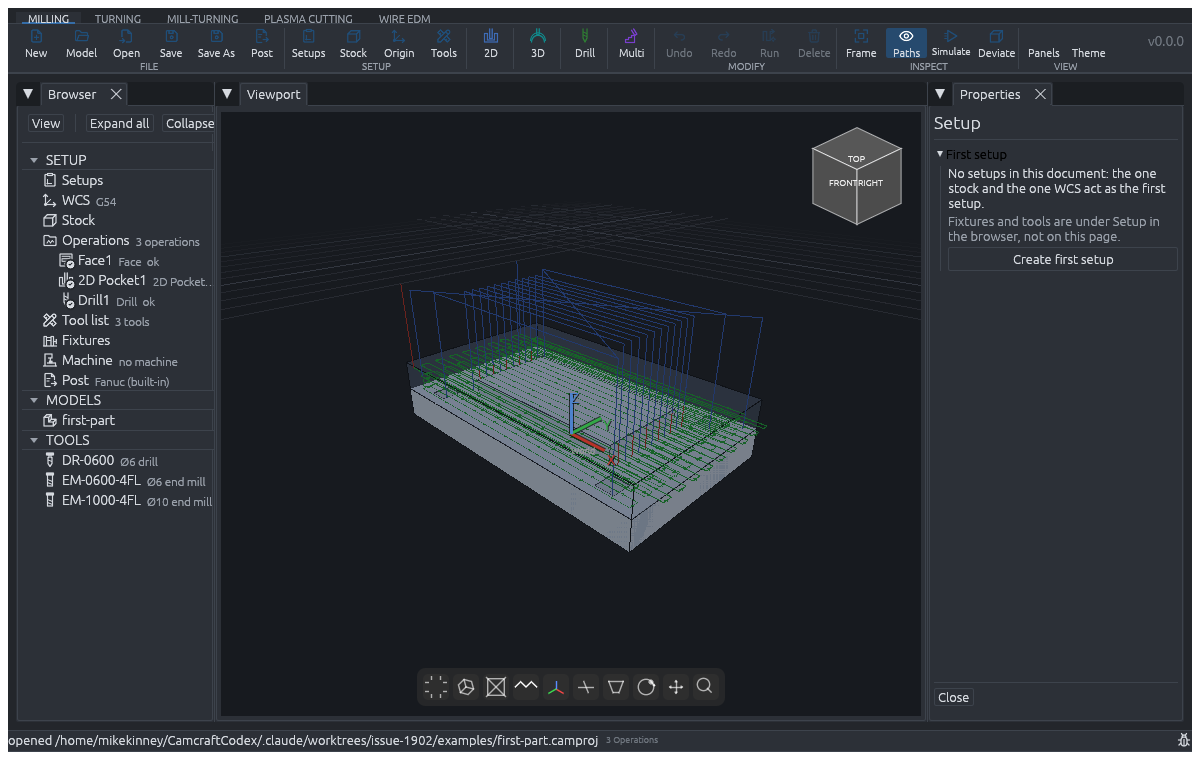
A setup is one way the part is held on one machine: its stock, its work offset, its machine and post, its fixtures and the tools it uses. A new document has no setups yet: its one stock and one work offset act as the first setup. Click Create first setup (Setup > Setups) to make it explicit, and New setup to add more, for example to flip the part and machine the other side.
The setup in the browser
Each setup appears in the browser with its own pages:
- Settings: whether it is the active setup, where its stock comes from, how the part is aligned, and the WCS label the post writes.
- Machine: the setup's machine. It can follow the document's machine or carry its own. Load machine (.mch) loads a machine file.
- Post: the post processor the setup writes with: a built-in post, or Load post (.cps) for a script of your own.
- Fixtures: vises, clamps and other workholding, imported or placed from the fixture library. See Workholding and fixtures.
- Tools: the tools this setup's operations use, in change order.
 Settings: whether it is the active setup, where its stock comes from,
how the part is aligned, and the WCS label the post writes.
 Machine: the setup's machine. It can follow the document's machine
or carry its own. Load machine (.mch) loads a machine file.
 Post: the post processor the setup writes with: a built-in post, or
Load post (.cps) for a script of your own.
 Fixtures: vises, clamps and other workholding, imported or placed
from the fixture library. See
 Tools: the tools this setup's operations use, in change order.
Below the pages, Operations lists the setup's operations.
 Operations lists the setup's operations.
Work offset
Each setup owns one work coordinate system. G54 to G59 is only the label the post writes for it. Heights that are measured from the work offset read the setup's offset.
 work coordinate system. G54 to G59 is only the label
the post writes for it. Heights that are measured from the work offset read
the setup's offset.
On the WCS page, Pick markers in viewport accepts the box markers, part corners and round-edge centres. A box marker takes priority when points overlap. A click on a part corner places the origin there; a round edge supplies its centre.
On a milling setup, the WCS page disables Tilt about X (roll), Tilt about Y (pitch) and the Turn X+, Turn X-, Turn Y+ and Turn Y- buttons, because milling cuts along machine Z and generation refuses a work offset tilted off Z. A hint points to Part alignment on the Setup page, which turns the part instead. X origin, Y origin, Z origin, Turn about Z (yaw), Turn Z+, Turn Z- and Level stay live. Set origin in the page footer, beside Close, applies the typed origin. On a lathe the tilt fields and all six turn buttons stay live. If an existing milling work offset is already tilted, the page warns that generation will refuse it: click Level, then turn the part with Part alignment.
The setup's alignment controls can align a part from faces, axes, three points or a cylinder wall. For a cylinder, choose Pick wall, select its curved wall, choose the target axis and optional angle or flip, then choose Apply cylinder. Place origin can use a stock box, model box or picked vertex while retaining the WCS rotation. These changes are undoable. MCP exposes the same cylinder and origin commands.
Face, Contour, Pocket and 2D Adaptive can generate picked features in an aligned milling setup. 3D Pocket, 3D Adaptive and 3D Finish also work there, including area controls and picked boundaries in the setup frame. Extra area controls on the 2D kinds, tilt combined with picks and unverified operation kinds still receive named refusals. Keep each pick with its intended setup; changing the alignment makes affected paths stale.
Carrying stock to the next setup
New setup with Carry stock and WCS over ticked starts the new setup from a copy of the active setup's stock and work-offset placement; re-place the copy to describe how the part is re-clamped.
On the Settings page of any setup after the first, the stock source can instead be what the setup before it leaves behind. Verification, rest machining and the fixture checks of that setup then see the material the earlier setup left, not the raw stock. CamCraft refuses that choice by name when it cannot verify the carry, for example between setups on different machines.
A side-on setup can carry the earlier stock through a quarter turn (90 degrees about X or Y). Turns must be quarter turns about X, Y or Z; a skew turn is refused with both setup names. For a side-on carry the column simulation keeps a conservative hull: it can retain extra material, but never removes material merely because the setup turned. Read the carry note in the verification report.
A box stock that keeps its cut history also keeps the machined walls and cavities through a side-on quarter turn, not only the column heights. The carry keeps the swept-tool geometry and reads separate material intervals along the new columns, and later cuts, stock clips and further turns keep them. Fixture checks use those intervals, so a fixture can touch a finished wall or sit in a cavity without a false collision. A later cut through the part is still caught.
The verdict retains a gouge cut before the turn, even if that hull hides it in the new view. It credits the departing setup's declared chamfers, deburrs and marks before retaining gouges, including when the next setup starts from a new block. A cut deeper than the declared finish remains a gouge; a later setup cannot erase it.
Machines
The workspace button on the Setup group mounts a built-in machine for
Milling, Turning or Mill-turning, and the ribbon shows only the operations
that machine can run. CamCraft also ships machine files for several
Tormach mills, and View > Panels > Machines browses, validates and
edits .mch machine files. The pane's kind filter offers All and every
machine kind: Mill, Lathe, Mill-turn, Plasma, Waterjet, Wire EDM and Sinker
EDM. New blank takes its kind from the same list, and is off under All. See Machine types for what each kind allows.
A machine file states facts such as axis travel, spindle speed range and rigid-tapping support. CamCraft checks a program against the facts the mounted machine states before it posts. A machine file is not a guarantee that a real machine is safe to run: check its numbers against your machine's manual.
Setups on different machines
Setups can sit on different machines or posts. Each such group generates on its own machine, and Post writes one NC file per machine and post, each checked against its own machine.
Setup sheets
The Setups page lists each setup's tools in change order, with cut and rapid lengths and the estimated time. Export setup sheets… writes one text page per setup. Posting does not write them.
For which unit and zero every number uses, see Units and coordinates.